
A Real Desktop Over Plain SSH (term-wm)
Floating windows, BSP tiling, and persistent sessions over plain SSH. Built in Rust for Linux, macOS, and Windows: no X11, no VNC, no tmux prefix chords.
On this page
term-wm (opens in new tab) is the spatial terminal desktop environment for plain SSH. Written against v0.10.19-alpha, November 2026.
Every remote engineer eventually hits the same wall.
You SSH into a headless Linux box to debug a failing build, tail a daemon log, and edit a config file at the same time. If the machine sits 3,000 miles away across international borders (or you are on hotel Wi-Fi or tethered over LTE), you hit an ugly trade-off immediately: either drag a sluggish VNC or X11 session over a high-latency link just to get a spatial desktop, or fall back to 1980s-era multiplexer prefix chords (Ctrl+B gymnastics, mouse selection that silently breaks, scrollback that vanishes when a pane closes).
Remote environments should not feel like second-class citizens.
That is why I built term-wm (opens in new tab) : a spatial terminal desktop environment written in Rust, running natively on Linux, macOS, and Windows. Where tmux multiplexes panes, term-wm is a full desktop compositor for the ANSI/VT character-cell grid (opens in new tab) , and it gives you floating windows, BSP tiling, automatic input routing, and persistent multi-viewer sessions over the exact same plain SSH connection you already use.
With Rust installed, it is one command away: cargo install term-wm, or cargo run --release from a clone. Nothing to configure first.
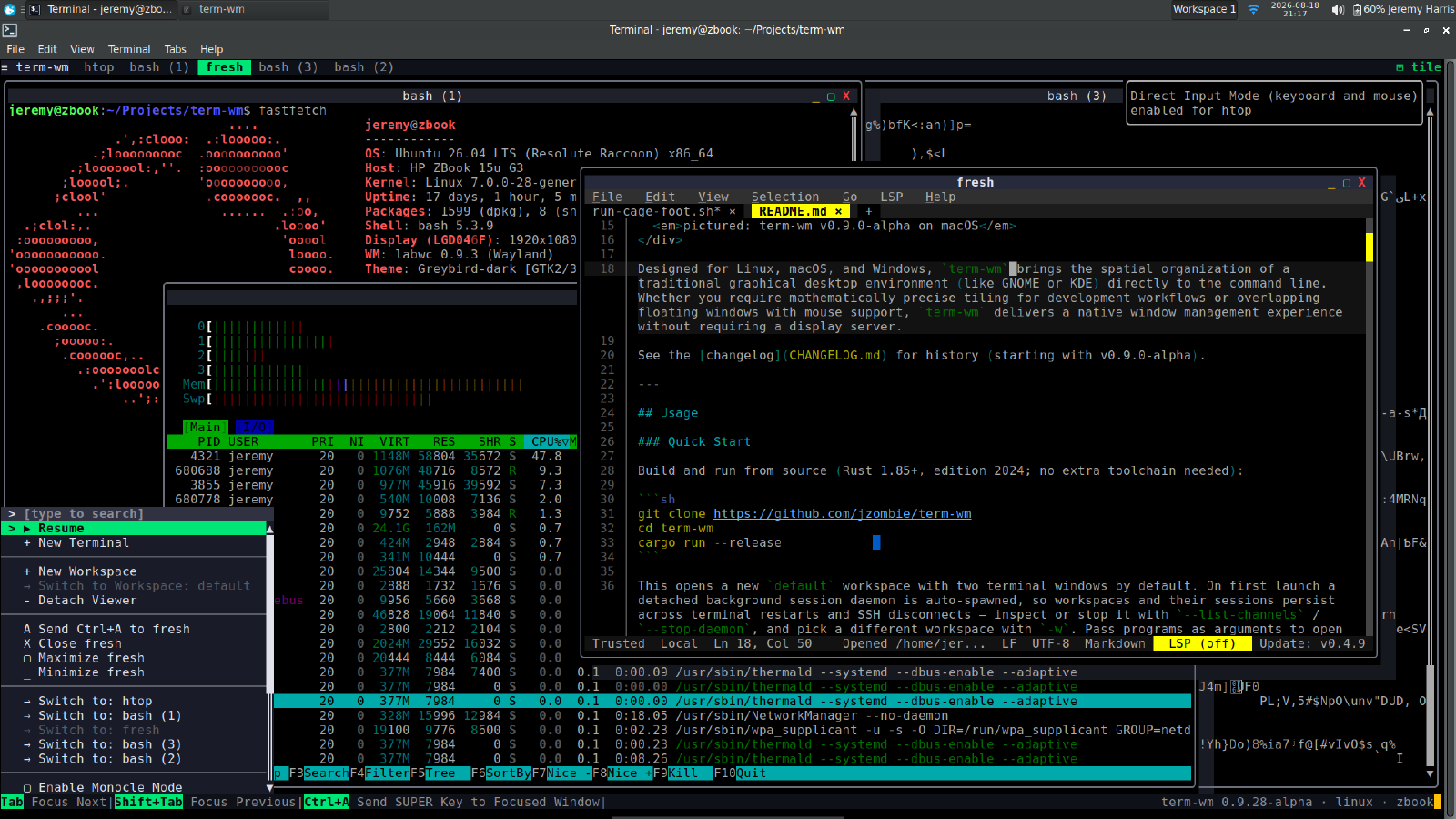
No X11. No Wayland. No VNC. Just a single headless daemon that keeps your workspaces and running tasks alive when your laptop lid closes, and hands them straight back to you when you reattach.
Beyond tmux: a compositor for the character grid
The shift in the mental model is small and total. tmux asks, how do I divide this rectangle? term-wm asks, what does a desktop look like when its pixels are characters?
That reframing buys four things, and each one exists to delete a specific frustration.
Three layout modes, one engine
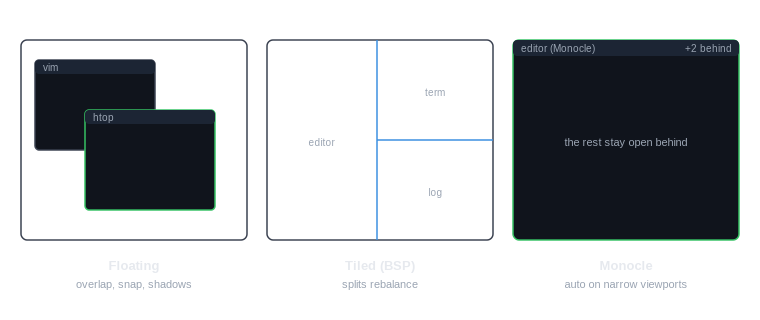
There are exactly three ways to arrange windows, and they sit one fuzzy search apart in the Command Palette as Toggle Tiling and Toggle Monocle Mode.
- Floating. Free overlap. Drag a window by its title bar toward an edge or corner and a solid green outline previews where it snaps, keeping windows reachable instead of stranding them off-screen. Overlapping windows carry drop shadows and depth shading in box-drawing characters.
- Tiled. The BSP/N-ary tree from
term-wm-layout-engine(opens in new tab) : mathematically precise splits, balanced leaf areas, aspect-ratio rebalancing when the viewport changes shape. Minimizing a tiled window pulls it out of the tree so the remaining panes rebalance, and restoring it brings it back into the layout. - Monocle. One window fills the viewport while everything else stays open behind it. On a narrow viewport this engages automatically, a responsive switch with a touch Floating Action Button, which is how a tablet gets a usable desktop instead of a squashed grid.
All three run on the same window tree, so switching modes rearranges the windows you already have instead of tearing the session down, and terminal resizes clamp windows inside the viewport so nothing is lost outside the frame.
Because the engine is a pure tree transformation with no I/O, its invariants are testable the boring way: property tests via proptest, with shrunk regression seeds committed so a failure in CI replays deterministically. Layout correctness is not a thing you eyeball.
Automatic input routing
The routing deserves precision, so here is exactly how it works.
term-wm continuously parses the PTY byte stream (through the forked
term-wm-vt100 (opens in new tab)
parser) with a PtyStateTracker, and a DirectInputTracker turns that state into a routing decision; both live in
term-wm-pty-engine/src/pty_state_tracker.rs (opens in new tab)
. The decision is a snapshot with two independent dimensions:
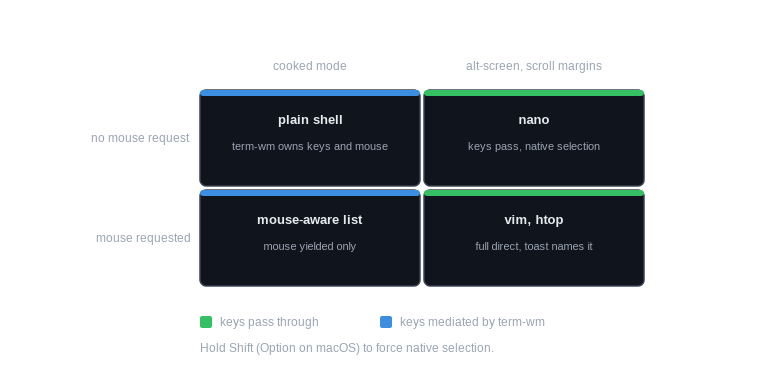
- Keyboard direct. When a child app requests the alternate screen buffer or defines custom scroll margins, every keystroke passes through unfiltered: zero delay, no buffering, no interception.
vim,emacs,htopget exactly the input they asked for. - Mouse capture. Only when the app explicitly requests mouse tracking does
term-wmyield the mouse.
The two are granted separately, which is the detail that matters. nano sits on the alternate screen without requesting mouse tracking, so it keeps native click-and-drag selection and wheel scrolling. htop requests the mouse and gets raw forwarded events. A brief toast names the transition: Direct Input Mode (keyboard and mouse) enabled for vim. Different windows run different apps in different modes simultaneously. You never configure it, and you never learn a chord to escape it, because Ctrl+A still summons the Command Palette.
Hold Shift (or Option on macOS) to force native selection even inside an app that captured the mouse.
A daemon that outlives your terminal
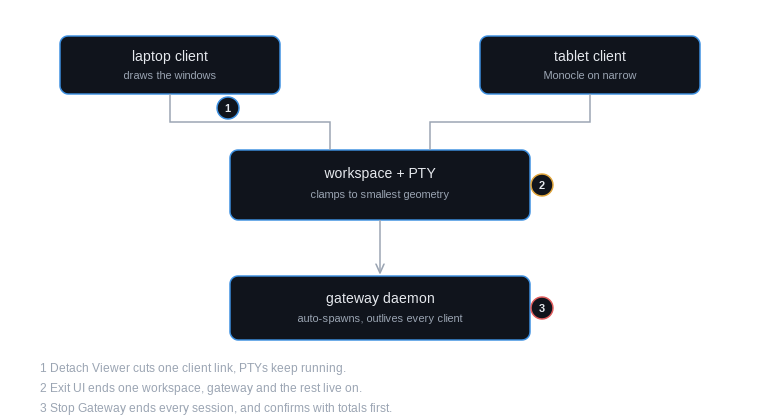
One self-contained binary embeds both the window manager and a background session gateway. On first launch a detached copy of the same binary spawns itself. Your windows are drawn by the foreground process, but every workspace channel, PTY, and running task lives inside the daemon. Close the app, close the terminal, drop the SSH connection: the work keeps running.
Reattach from another machine and your workspace is exactly where you left it. Multiple viewers can attach to one workspace channel over the same connection, each carrying a per-viewer connection ID through the
muxio (opens in new tab)
RPC pipeline, so Detach Viewer can remove one participant without killing a single process. That same channel makes pair sessions practical: two clients can share one workspace, the PTY clamps to the smallest geometry across connected clients, and every client carries input, with per-client input attribution still being built out.
Daemon endpoints are
generation-scoped (opens in new tab)
: the <hash8> suffix keeps one build generation from cross-wiring IPC against another, which is why a fresh install starts its own gateway instead of talking to the old one.
The three ways out are distinct, and picking the wrong one is the only real footgun:
| Action | What ends | What survives |
|---|---|---|
| Detach Viewer | Only your viewing connection | Everything: the workspace runs headless with all windows and tasks alive; reattach anytime |
| Exit UI | That workspace’s window-manager process, with its windows and tasks | Your other workspaces and the gateway daemon |
| Stop Gateway Daemon | Every workspace session, then the daemon | Nothing session-related; a fresh daemon auto-spawns next launch |
Configurable quick-launch tasks
.term-wm/tasks.json files act as an IDE quick-access list for the terminal. Discovered by walking up from the launch folder, they pin to the top of the nucleo-powered Command Palette so any build, test run, or watcher is a fuzzy search away instead of a remembered shell line. Each task runs in a dedicated PTY window that stays open with an explicit exit marker when it finishes, so a failed build never scrolls away or dies with its pane.
The file is JSONC, so it takes comments. Fields cover cwd, env, platform and environment gating, and background runs with expected_exit_codes. The launch folder’s own name becomes the workspace name, and the Command Palette lists every workspace with live counts of open windows and running tasks, so you know where work is active before you switch.
What building it taught me
Two lessons expensive enough to be worth writing down.
Terminal interfaces are hard, even on top of good libraries
Ratatui (opens in new tab)
,
Crossterm (opens in new tab)
, and the
vt100 (opens in new tab)
parser (forked as
term-wm-vt100 (opens in new tab)
) do the genuinely hard mechanics: escape-sequence parsing, cell diffing, layout, backend plumbing. Getting all of that for free is a large head start, and it is still not the product.
What sits on top is the part nobody hands you: a z-ordered draw plan, a screen-space hitbox registry so a click at column 40 resolves to the component underneath it, frame pacing with a power profile that backs off when idle, scrollback synchronized to the PTY, line reflow on resize, drag and snap gestures expressed in character cells, a clipboard that behaves differently on every host, and an input-routing state machine that has to guess what a child app is about to ask for. Two cases make it concrete: copy and paste bridges three clipboards over OSC 52 and diverges over SSH, and a styled write to the final column must erase against the default background or it smears across the margin ( issue #115 (opens in new tab) ). Customizing beyond the library’s defaults means owning essentially all of it. The embedding API I expose is still unsolidified on purpose: I would rather ship an honest alpha than freeze a shape I have not finished thinking about.
Terminals are not just text
This one cost more than anything else here, so it is worth being precise.
A terminal is not a stream you append bytes to. It is a screen you keep in sync, and the libraries understand the difference.
Terminal::flush (opens in new tab)
diffs the previous Buffer against the current one and hands the backend only what changed: (col, row, cell) triples, where a cell compares on symbol, foreground, background, modifiers, and underline color. That is cell-level, not byte-level and not strictly row-level, though contiguous changed cells on a row collapse into one cursor move and one run of characters, so on the wire it looks row-wise. The point is the ratio: changing a single character on screen costs something like twenty bytes.
The bug was a layer that quietly discarded all of that. The inner window manager emitted its ~20-byte diff correctly, and the session client one layer out repainted the entire viewport on every frame, driven by a 100 ms idle timer plus every PTY chunk that arrived. The arithmetic in issue #400 (opens in new tab) works out to a 50 KB/s floor with nothing changing and up to 2+ MB/s with a colored TUI on screen, and the write happened on the same thread that was draining input, so once the socket backed up, keystrokes queued behind the output backlog. What it looked like from the outside was three to five seconds between pressing a key and seeing it.
What made it genuinely confusing, a little ironic given that escaping VNC lag was the whole reason I built this, is that it behaved like weather rather than like software. Some hours it was fine. Other hours it was unusable. I was watching from roughly 3,000 miles away, over an international path whose capacity changed with the time of day, so the timing read like blame rather than cause.
The same lag showed up identically in two different clients, which is how I knew the terminal emulator was not the variable. The blue block under the pointer made the volume worse than it had to be as well:
render_cursor_overlay (opens in new tab)
repainted the single cell under the mouse on every move, so each movement was another reason to repaint the whole viewport. The byte figures in that issue were derived from the code path with the formulas written out rather than measured live, because at the time I could not restart the running process; the fix went in as
PR #406 (opens in new tab)
.
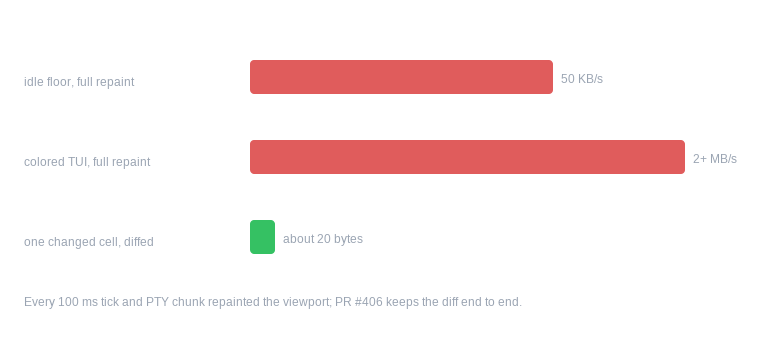
The fix was small and the lesson was not. A diff is only worth what every downstream layer does with it, and rendering correctly is not the same as transmitting correctly.
How I actually use it
I want to be clear that this is not a tool I built and abandoned in a demo folder. It is the environment I work in.
The typical shape is many editor windows open at once on one remote machine, each one a different project, floating where I want them and tiled where I do not want to think about them. Because the launch folder names the workspace, ~/src/api-server and ~/src/ledger-worker are separate workspaces on the same daemon, each with its own windows, its own running tasks, and its own count visible in the palette before I switch. I do not reconstruct context when I change projects; I pick a name out of a fuzzy list.
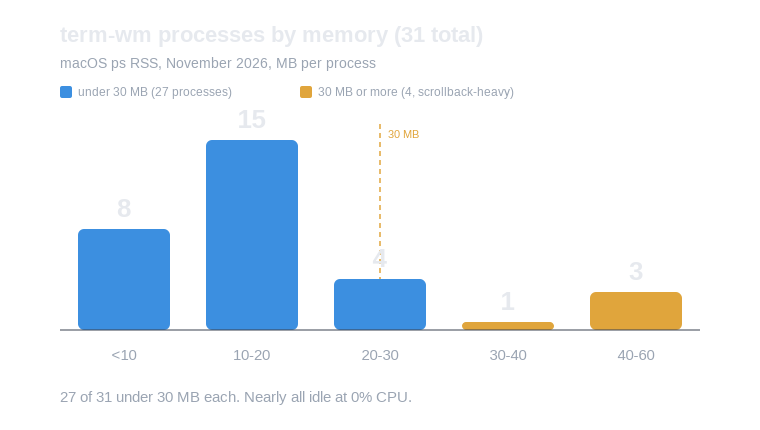
My sessions are heavy and always on, 24/7: terminals that output a lot of lines, left running for weeks between my own upgrades. As I write this I have 19 workspaces open, each with at least two windows, one with nine, around 50 windows running in total. Those show up as 31 term-wm processes in ps (workspace clients and servers plus the gateway). Most of them sit at 0% CPU and under 30 MB while the system idles near 90%, with hours of accumulated CPU time behind them; the few large outliers are scrollback from the highest-output terminals. Left alone, I expect it would run for months or years.
The part that changed my habits is the second screen. I regularly connect to the same machine from a tablet, in bed, at night: flip between projects, check whether the overnight build or the agent run finished, and plan what a remote AI agent should do next. A narrow viewport drops into Monocle automatically and the touch Floating Action Button appears, so the phone or tablet case is a designed path rather than a broken desktop. The terminal side of it stays up on my desktop the whole time, so nothing I start from the tablet is orphaned when I close it.
That is the actual payoff of the architecture: the desktop is not on my laptop, it is on the machine, and any screen I happen to have becomes a window onto it. Each project lives in its own complete, persistent workspace, and when I drop into it without waiting on pixel frames to cross a border, a computer 3,000 miles away stops feeling remote. It feels like it is sitting right on my desk.
How it compares
Honest rows, including where term-wm loses.
| Capability | term-wm | tmux / GNU screen | VNC / RDP / X11 |
|---|---|---|---|
| Transport | Plain SSH, no display server | Plain SSH | Its own protocol; X11 forwarding over SSH |
| Window model | Floating, tiled (BSP/N-ary), and Monocle in one tree; z-order, shadows, edge snapping | Flat grid of panes and windows | Pixel desktop with true overlap |
| Input routing | Automatic, from PTY state, keyboard and mouse decided independently; one hotkey (Ctrl+A) for the palette |
Manual prefix chords, Ctrl+B |
OS-level mouse and keyboard, native by definition |
| Persistence | Embedded gateway auto-spawns; sessions survive terminal restarts and drops | Persistent, manually managed | Requires a live display server or an always-on desktop |
| Multi-viewer | Per-viewer connection IDs; evict one participant without killing PTYs | Shared sockets with permissive permissions or wrappers | One viewer per session in practice |
| Tasks | .term-wm/tasks.json, fuzzy palette, exit markers |
Shell scripts outside the tool | Whatever the desktop environment offers |
| Dependencies | Single Rust binary on Linux, macOS, or Windows; UTF-8, truecolor recommended | Almost always preinstalled, Unix-centric on Windows | Display server, GPU or framebuffer, high bandwidth |
| Where it loses | No pixel-accurate web browser over the wire | No floating, overlap, or z-order | Heavy on headless boxes; latency under typing load |
Under the hood
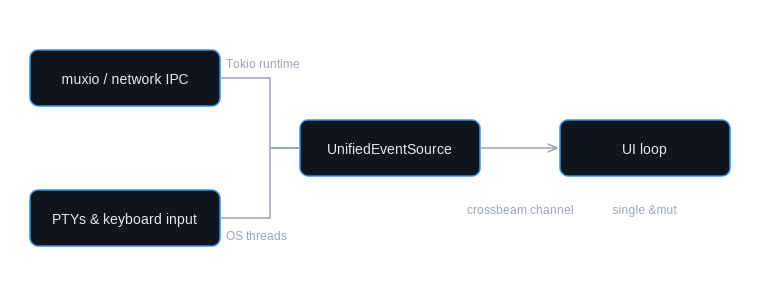
Layout calculation, rendering, PTY I/O, and IPC are decoupled so the UI thread never blocks on I/O: async work runs on separate threads and Tokio tasks, funneling into one crossbeam-channel UnifiedEventSource that a single-threaded loop drains each frame, with a pacer targeting 60 FPS and a power profile that drops frame rate when idle.
-
term-wm-core(opens in new tab) : state engine, generationalWindowKeyslotmaps where a closed key is never reused, command palette,Reaperthread. -
term-wm-layout-engine(opens in new tab) : BSP and N-ary tree layout, aspect-ratio rebalancing. -
term-wm-pty-engine(opens in new tab) : dedicated PTY reader threads, drain-sync resize, direct-input detection. -
term-wm-console(opens in new tab) /term-wm-render(opens in new tab) /term-wm-events(opens in new tab) : Crossterm backend,DrawPlanRenderer, screen-spaceHitboxRegistrythat routes mouse hits to the right component, input translation. -
term-session(opens in new tab) plusmuxio(opens in new tab) : detachable client/server session protocol, workspaces, sizing. -
term-clipboard(opens in new tab) /term-sys-io(opens in new tab) : cross-platform clipboard overarboardand OSC 52.
Hardening is where the credibility comes from. Components render into in-memory buffers with test doubles, so layout and PTY scroll sync are verified without a terminal, including property tests for scroll sync. The test determinism policy treats flakiness as a product bug: no blind sleeps, virtual clocks for every timer, RAII drop guards on spawned daemons and PTY children, unique gateway names per run, and captured diagnostics that CI archives on failure. Coverage runs through cargo-llvm-cov and reports to Coveralls.
Cross-platform, stated honestly. The test matrix and Clippy run on Ubuntu, macOS, and Windows runners, so all three targets are built and exercised on every push, and the platform-specific plumbing is real rather than incidental: on Windows the gateway detaches with CREATE_NEW_PROCESS_GROUP | DETACHED_PROCESS and PTY children are held in a Win32 Job Object so killing a session takes the whole process tree with it, while on Unix it is plain setsid(). The caveat I would want stated before reading it: the nightly soak job (7 channels, 6 workloads, a 15-minute run at 02:00 UTC) covers only Ubuntu and macOS. Unix has historically been tested harder than Windows, and Windows gets the same correctness tests but fewer overnight hours.
Who this is for
Built for engineers who live over SSH, especially across long-haul or international links where VNC turns to mud, who want spatial organization and persistence without a display server, and would rather read a Rust workspace than a YAML spec.
Not built for someone who just needs one local shell tab, or someone who needs a pixel-accurate web browser over the wire. Buy a VNC session for that; it is the correct tool.
Current status and trade-offs
Worth knowing before you commit to anything: this is an alpha, but a remarkably stable one in daily use. The library API is unsolidified and changes fast. Truecolor is strongly recommended for the shading and drop shadows, though it degrades to 256-color, 16-color, and raw Linux VTs. It needs UTF-8 and a font that draws box-drawing characters. That is a deliberate constraint: modern terminal features are avoided where possible so stock terminals keep working, including Terminal.app, the stock Ubuntu terminal, Command Prompt, and PowerShell. It runs natively on Linux, macOS, and Windows, with the Unix testing caveat noted above. It is dual-licensed MIT / Apache-2.0.
One behavior deserves a warning rather than a footnote: stopping the gateway is explicit and confirms with totals first, because it terminates every workspace’s PTY processes. Upgrade and nesting edge cases live in the README (opens in new tab) .
Getting started
Three steps, and that is the whole setup.
- Install (
source only (opens in new tab)
for now). There are no prebuilt binaries yet; downloadable binaries for each platform are planned. For now you need a
modern Rust toolchain (opens in new tab)
(Rust 1.85+ for edition 2024), then
cargo install term-wm(opens in new tab) , or clone andcargo run --release. - Launch over SSH. Just run
term-wm(two terminals by default), then open whatever windows you need from inside it (Ctrl+Aopens the Command Palette,New Terminalis the fuzzy search). Once that feels familiar, the CLI args can do the same setup in one shot:term-wm -n 4 -r "vim README.md" -r "htop"opens four windows, the first two already running what you named. - Detach and come back. Close the laptop. Drop the connection. Reattach from anywhere, pick the workspace out of the palette, and everything is still running.
Not much to memorize
The design target was that you should never have to open a manual to get productive. There is exactly one chord, Ctrl+A, and pressing it twice sends the Ctrl+A to the currently focused window, so it cannot trap you. Everything else is discovery inside the app via the Command Palette (Ctrl+A):
- Type English, not bindings. The palette is fuzzy and searches command names:
monocle,tiling,new terminal,detach,stop gateway. You do not learn an escape sequence, you start typing the thing you want. - The screen tells you what is possible. A bottom panel shows up to six keybinding hints for the current context, and the palette carries a
Helpentry for the full list. - Mode changes announce themselves. A toast reports
Direct Input Mode (keyboard) enabled for nanoas it happens, coalescing rapid shifts into one message, so you are never guessing which layer has your keyboard. - Nothing to set up first. No config file, no daemon to start by hand, no workspace to register. The defaults are already the right ones: the launch folder becomes your workspace name, and a
.term-wm/tasks.jsonin any parent directory shows up in the palette.
The mental model is that you learn one key and then read the screen. Everything past that is optional depth.
Start with the
repository and quick start (opens in new tab)
. If you would rather inspect the internals before running anything, the
development guide (opens in new tab)
has the crate responsibility map, the
tasks file specification (opens in new tab)
has the full schema, and term-wm-layout-engine is small enough to read in one sitting.